Ripping Assets from a Unity assetBundle
This tutorial will demonstrate how to extract assets from a .bundle file.
Disclaimer: This guide is intended for educational and personal-use purposes only. The author is not responsible for any misuse of the information provided.
For this tutorial, you will need:
- AssetStudioModGUI v0.19.0
- A working Unity AssetBundle
What is AssetStudioModGUI?
AssetStudioModGUI (otherwise referred to as ASGUI) is a tool that allows the user to browse and export assets stored within Unity AssetBundles (.bundle files, commonly.)
Step-by-Step process
Step 1: Launch ASGUI
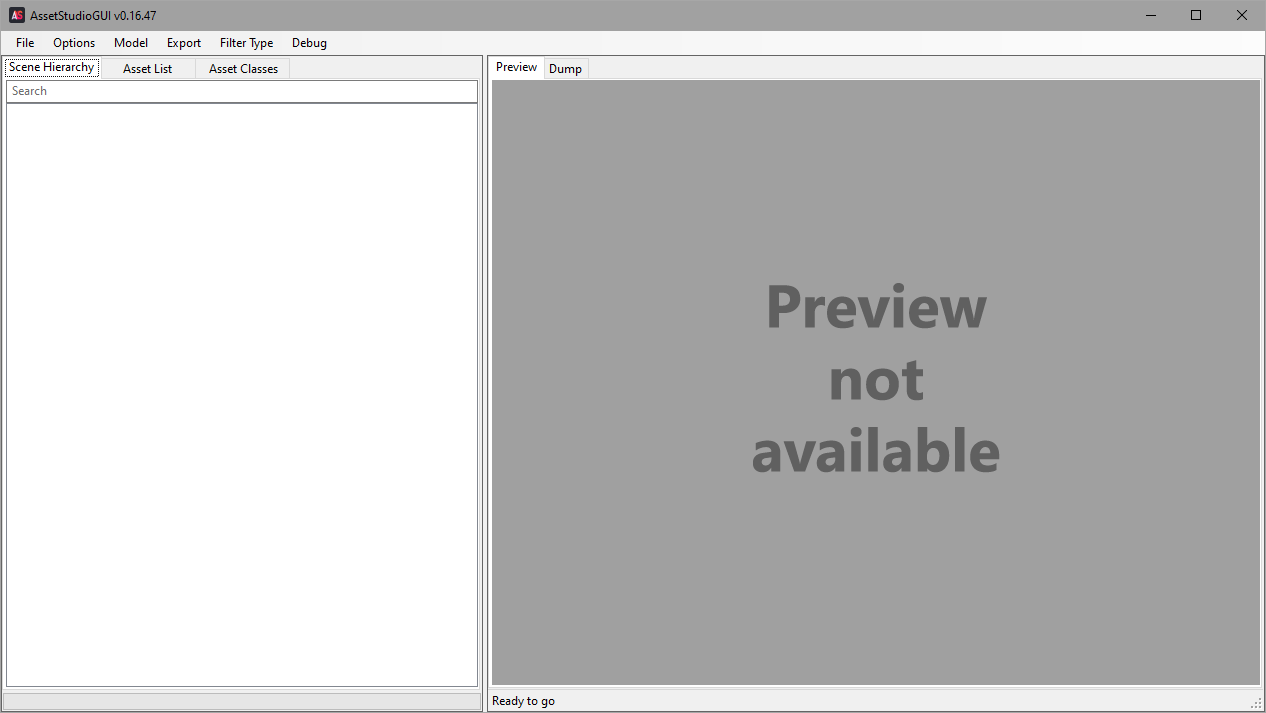
Once installed, open ASGUI using AssetStudioGUI.exe, which should open in the window below.
Step 2: Import your AssetBundle
Once opened, you have a handful of options to import a working Unity AssetBundle into this software:
Taskbar Method
At the top of the ASGUI window, click File → Load File and navigate to your AssetBundle in the explorer window that opens. Once found, click on the .bundle file and then click Open.
Drag-and-Drop Method (Recommended)
With ASGUI open, you can select your AssetBundle in another window, and drag-and-drop it into your ASGUI. This will load it in the exact same way as the Taskbar Method, though I personally find it quicker.
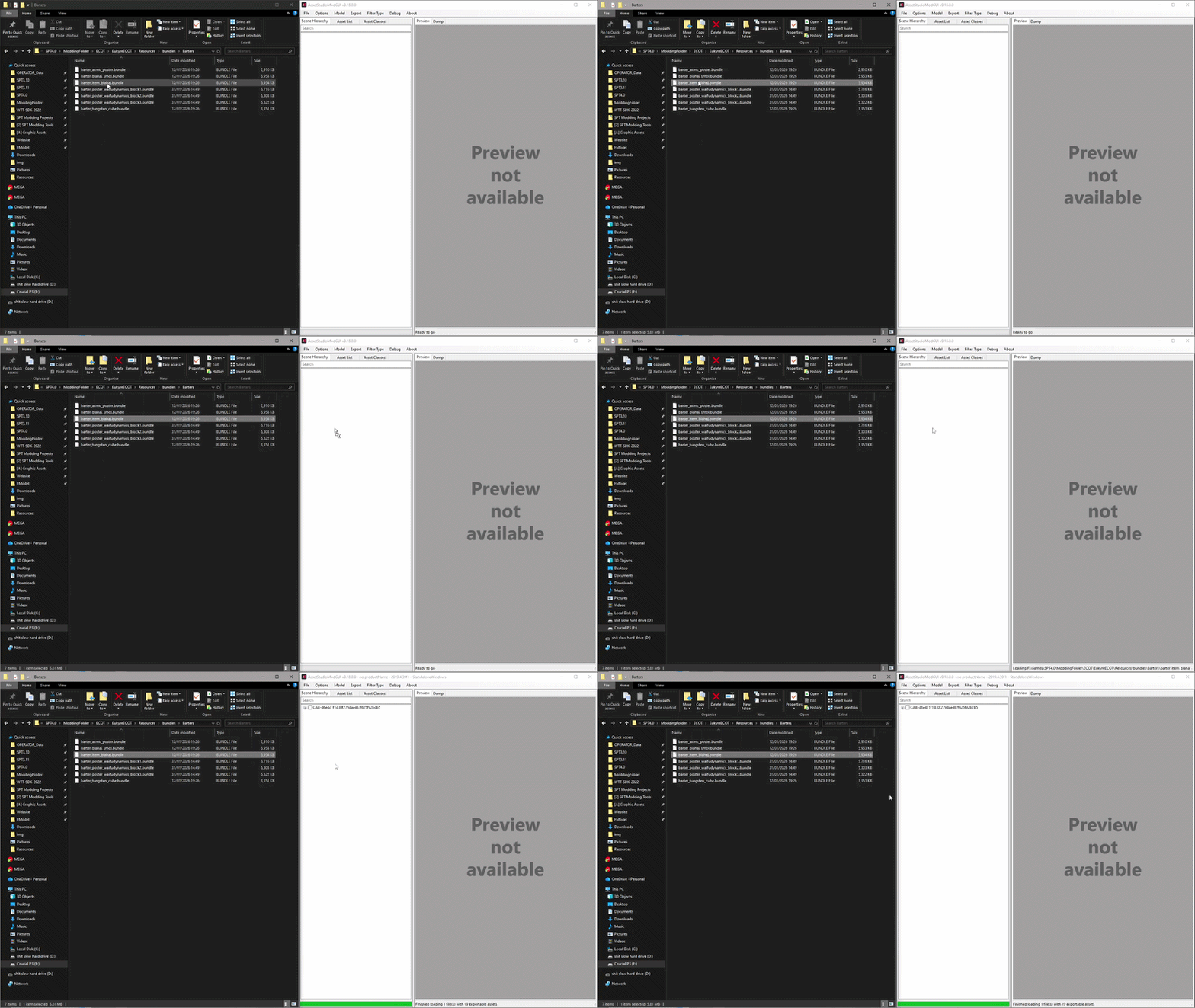
If done correctly, you will see a new entry in the Scene Hierarchy window to the left of your ASGUI window.

Step 3: Browse the Assets
Once loading is complete, the Asset List tab at the top of the left-most window will become available. (see above image) Clicking on Asset List will present you with all of the components within that AssetBundle, with the most common types being the following:
- Texture2D – Images and textures
- Sprite – UI and 2D graphics
- Mesh – 3D models
- Material – Surface properties
- AnimationClip – Animations
- AudioClip – Sound effects and music
- TextAsset – Text or binary data
- GameObject - Objects made up of multiple components
The Asset List also supports clicking on some assets to preview them, such as Meshes or AudioClips. 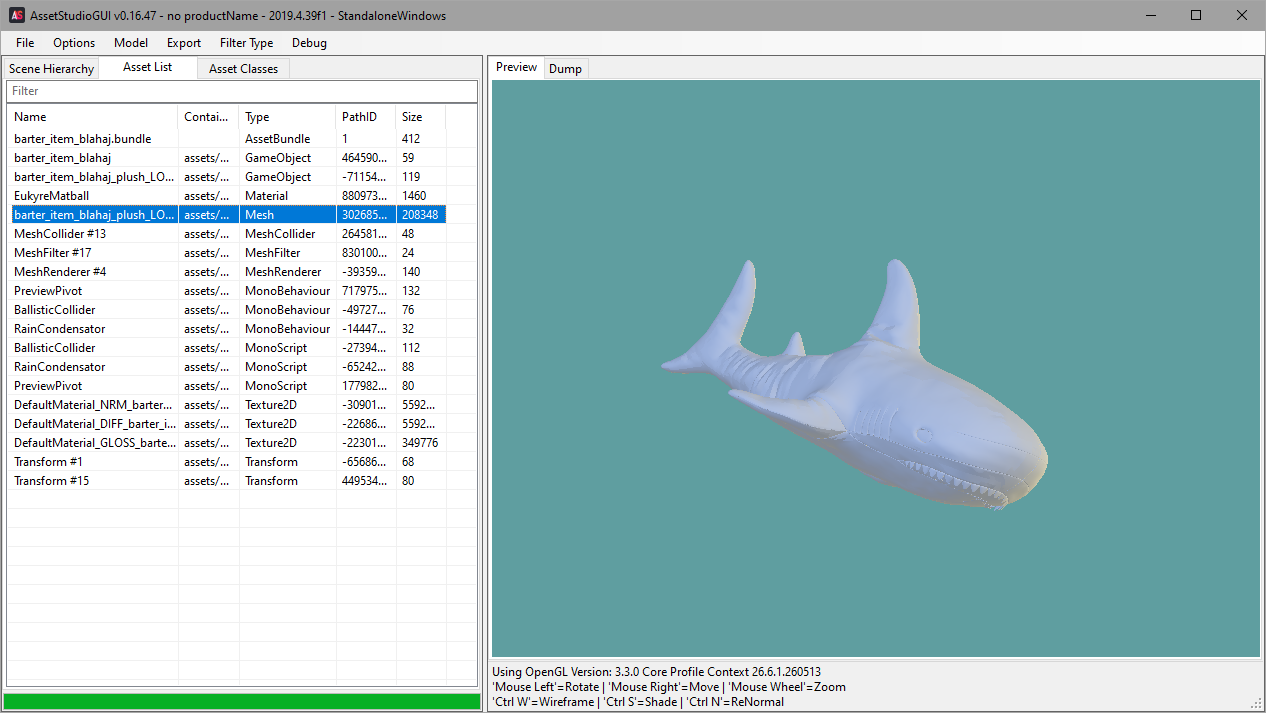
Step 4: Selecting Wanted Assets
If you want to just rip the entire AssetBundle, skip to Step 6.
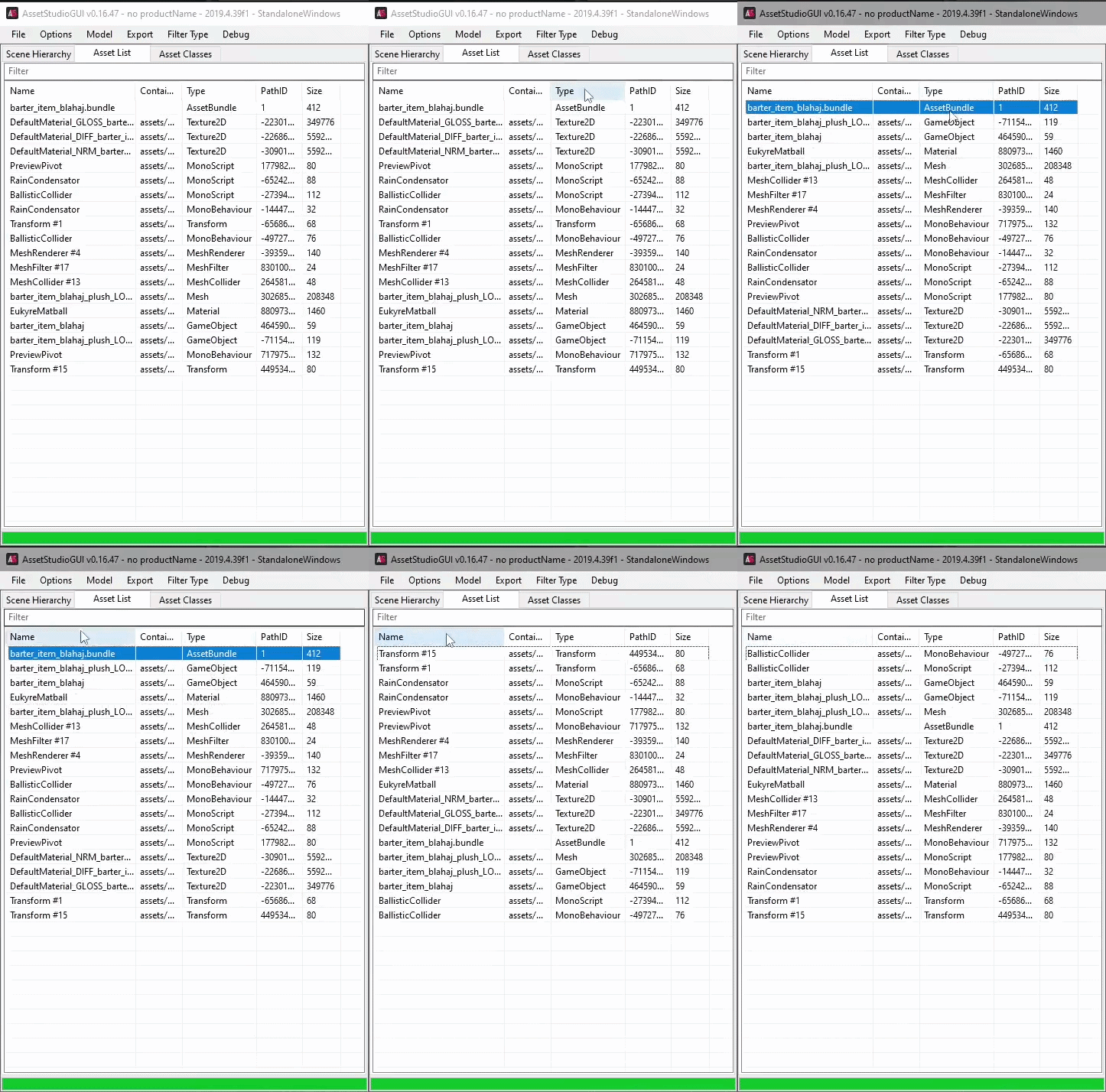
In the Asset List window, you can select specific assets you want to pull from the bundle by either Shift+Clicking a specific region of assets, or CTRL+Clicking on specific assets you want.
You can also filter by Name, Container, Type, PathID and Size using the headers at the top of the Asset List window.
Step 5: Exporting Specific Assets
With your desired assets selected in the Asset List window, Right-click the selection and choose Export Selected Assets, or use the Export menu on the Top Navbar by selecting Export → Selected Assets.
After this you just need to choose an Output Folder, and then ASGUI will do it’s thing.
Step 6: Exporting the Entire AssetBundle
If you followed Step 4 and 5, you can ignore this step.
If you want to extract the entire AssetBundle, there are 2 ways to do so:
Asset Dump
With your loaded AssetBundle, simply navigate to the Top Navbar and click Export → All Assets, and provide an Output folder. Similarly to Step 5, the output will be sorted into folders and neatly organised.
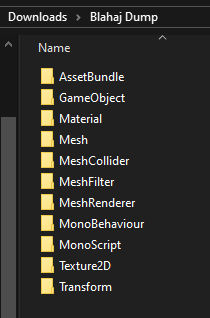
This Method does have some downsides, however. By using this method to dump the bundle, it exports into a .obj file that carries no metadata like material data, texture info, or file structure. If you’re looking for any of these things, try the next method.
Exporting to .FBX (Recommended)
For this method, you need to select the File Hierarchy that shows up in the Scene Hierarchy window, found in the Top Navbar. I personally recommend selecting the Second File in the Hierarchy, which is usually the next one underneath the CAB-ID when you open up the Hierarchy in ASGUI, as seen below.
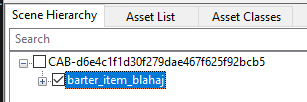
Once this is selected, navigate to Model → Export selected objects (Merge) at the top of the ASGUI window.
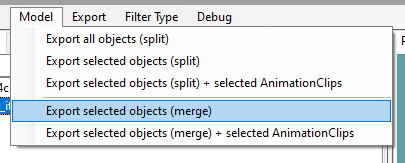
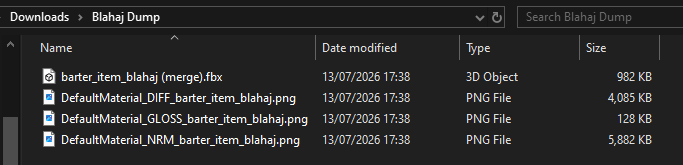
Provide an Output Folder in the Explorer Window that appears, and let ASGUI do its thing. Your Output should look something like this:
And that's it!
Those are the most common methods I personally use to extract items from Unity AssetBundles using ASGUI!
Common Issues/Bugs
Bundle won’t open
Make sure the AssetBundle isn’t corrupted. Try loading the entire AssetBundles folder instead of a single file.
Some assets don’t preview
Not every Unity asset type has a built-in preview. You may have to export the asset to view the specific data you need.
Missing textures or models
Some assets are split across multiple AssetBundles. Loading the AssetBundle + its dependancies (usually also AssetBundles) should fix this..
Exported models look incomplete
Models may depend on materials, textures, or other assets stored in different bundles. Loading all related AssetBundles before exporting usually produces better results.
None of these solve your problem? Ask for some help in #questions in the WTT Discord
Enjoy Reading This Article?
Here are some more articles you might like to read next: